How to Add Promotion on LinkedIn? – Step-by-Step Guide
Jump To Key Section
What could possibly be a better feeling than being promoted? Now that your endless hours of brainstorming, hustle, and late-night work have finally paid off, it’s time to pop the virtual confetti on LinkedIn.
Add a promotion on LinkedIn because your hard work needs a professional space for celebration. This not only builds your resume but also boosts your morale. Whether you wish to make a stand-out post or just update your profile quietly, here’s a complete guide on how to add promotion on LinkedIn. So log in to your account and follow the steps!
Why Should You Add a Promotion on LinkedIn?
LinkedIn profiles are one of the first things an employer asks for while applying for a new role. It is a digital resume that needs proper updating of job roles and skills to stay competitive in the market.
Below are a few more reasons why LinkedIn add promotion is important:
- Increases Visibility: Professionals who have active accounts often get an edge over others. Recruiters and hiring managers shortlist candidates based on their updated profiles.
- Makes You Credible: Showcasing your talents and achievements is not a showoff, but a metric that boosts your credibility. It shows that you have grown in your domain and are set on the right trajectory.
- Boosts Networking: When you add a promotion to LinkedIn, your connections congratulate you on the win, boosting impressions on LinkedIn. This gives you a chance to network with the right people who can help you grow further.
- Creates a Professional Narrative: LinkedIn shows a snapshot of your professional life. Adding a promotion on LinkedIn sets a narrative about your strengths and skill sets in people’s minds.
Now that you know why it is important to add promotion to LinkedIn, let’s go ahead in this “how to add promotion to LinkedIn” guide and learn the steps for the same.
How to Add Promotion on LinkedIn Using Desktop?
It is very handy and simple to complete the LinkedIn add promotion method on the desktop. Follow the steps for how to add a promotion in LinkedIn, written below, to edit your profile and make the announcement:
- Launch LinkedIn and log in to your profile.
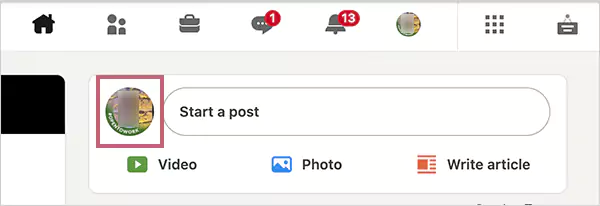
- Go to the profile section and click on View Profile on the homepage.
- Scroll down to the Experience section and select the edit icon in front of your current role.
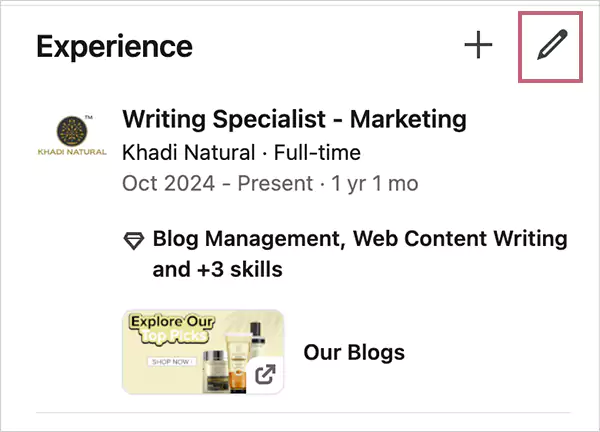
- Now, you can edit your current role and title to create a new one.
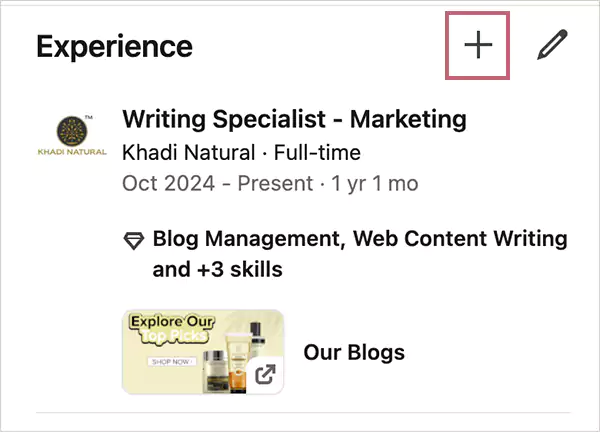
- The second way is to create a new experience. Click on the + icon and select Add Position.
- Now fill in your title, employment type, company name, and the date of starting.
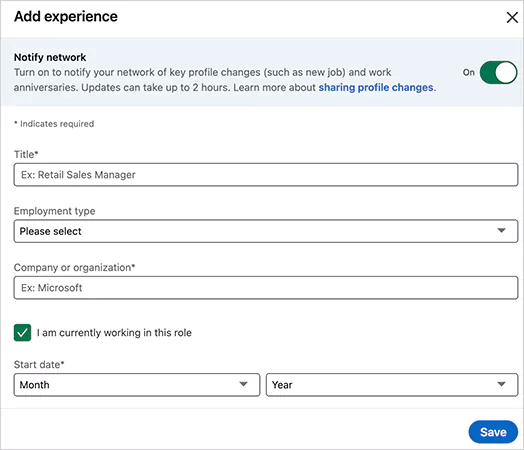
- This update will automatically reflect in your career progression.
After saving this, you can choose whether to share the update as a post.
Which Profile Sections Need Updating to Add Promotion on LinkedIn?
You must make your promotion update really shine because celebrating small victories is the only way forward. A small post and key section update can improve your professional perception.
So, before we jump into the steps for how to add a promotion to LinkedIn, let’s first see what sections we need to work on:
- Experience Section: Here, you need to add your job title, date of promotion, and new responsibilities. To make things appear clear, it is best to make a separate post under the same company. Write an action-oriented description showcasing the last achieved results along with new targets.
- Headline: Think of it as a designation that pops up every time people search your name. Having a nice headline with industry-specific keywords puts in forward in the relevant searches, boosting your visibility. For reference, if you’re promoted as Senior Marketing Manager, you can write: Driving sales and building brand strategies for XYZ company.
- About Section: With a new role and responsibility, it is important to update your story. Revise your about section with new skills and challenges to build an authoritative presence. For reference, you can write like: Recently got promoted as a senior associate, where I am in charge of handling a team, making data-driven decisions, and forming strategies for business development.
- Skills and Endorsements: You must edit your existing skill section and add skill sets aligning with your new position. Plus, request your friends and colleagues to endorse you on LinkedIn to gain credibility.
- Featured Section: In case your new position has been covered in an article, news, or on any other medium, add it to your featured section. This sort of builds a great portfolio of your work and generates quality leads on LinkedIn for new projects.
- Profile Photo and Banner: Well, this is not a mandatory action, but it’s always a good idea to update your profile. Adding a clear headshot and banner is simply a subtle way of showing that you are going up in the career ladder.
As you’ve now understood, the sections that need revamping, let’s proceed to the method of how to add promotion in LinkedIn in the next section.
Suggested Read: How to See Sensitive Content on X? A Thorough Guide
How do you Add a Promotion on LinkedIn Using a Mobile Phone?
Don’t want to wait to add a promotion on LinkedIn? Grab your phone and create the update; it’s that simple. You can update your experience, profile picture, and add new skill sets with just a few taps on your LinkedIn mobile app. Here’s the breakdown of the steps:
- Go to the LinkedIn app on your iOS or Android and log in to your account.
- Navigate to the profile section and select View Profile.
- Move down to the Experience section and click on the + button.
- Here, add the info about your new role and tap on save.
Once you’ve done this, spare a few minutes updating your profile picture, banner, and about section. It is also a good idea to share your promotion as a post to connect with people.
Read More: How to Remove Photos From Facebook? (Answered)
Tips and Tricks to Create a Post and Add Promotion on LinkedIn
Struggling with what to write in a post? We have a few tips and templates to help you gauge the right words to make your promotion post impactful.
- Match the Post with Your Feelings: Do not add jargon, and write a very professional post. Make sure to add your true feelings and write it from your heart. The emotional connection might translate well within your community.
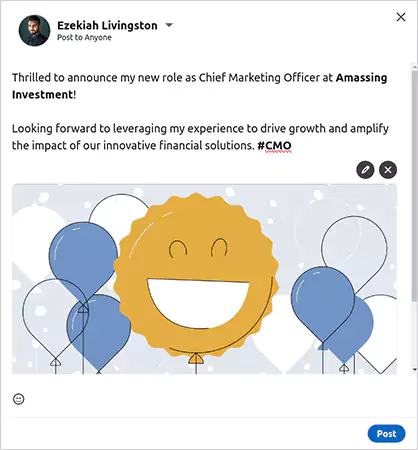
Example: I am beyond excited to share that I’ve been promoted to the Managing Director position at ATC Enterprises. The journey to date was nothing short of incredible, and I’m deeply grateful to my mentors and team for making this possible. Looking forward to the new challenges and a new desk!
- Show Gratitude: People appreciate grateful people, so you just add a touch of gratitude to show humility and professionalism. You can mention your teammates, mentors, and seniors.
- Tell Your Journey: Explain how you’ve evolved professionally and personally, and give a peek into your career journey to the people.
- Add a Closing Line: A short and punchy closing line can make your promotion post stand out from the rest.
Example: 1. Looking forward to the new set of challenges.
2. Cheers to the new professional chapter of my life.
- Add revenue increase numbers in the post to support it statistically. This boosts your authority and credibility 10 times more than a normal post.
Read Next: Best Twitter Accounts to Learn Great Things and Stay Updated
Wrapping Up!
Promotion is not a mere career milestone but proof of your hard work and resilience, and ought to be celebrated on LinkedIn with your connections. Adding promotion on LinkedIn helps to revamp your digital resume and presents you in the right place to bring in new opportunities.
We have explained about the LinkedIn add promotion feature and the steps for how to add promotions on LinkedIn in this blog. We hope the info given above will help you figure things out easily. Share the article with friends and colleagues who recently got promoted, and remind them to update their achievements on LinkedIn.
Read Next: How to Delete LinkedIn Account Effectively in 2025? (Answered)
FAQs
Ans: Add a new experience in the profile section with a title and responsibilities, and it will automatically reflect in the experience section.
Ans: You can edit the current position or create a new position with a title and description in the same company. Once saved, it will come across as a career movement.
Ans: Go to the view profile page, scroll down to the experience section, and create a promotion post.
Ans: You can write the promotion post like: I am excited to share that I am starting a new role as a Senior Data Analyst at TBC company. So honored to be supported by such a wonderful team and appreciated by the great mentors. I look forward to bringing in great victories for our team.
Ans: Adding a promotion on LinkedIn is truly justified when you post about it. You can either share the experience post directly with a small caption or write an announcement post from scratch.