Best Ways to Delete Time Machine Backups
“Data is a precious thing and will last longer than the systems themselves.” — Tim Berners-Lee (World Wide Web Inventor)
That’s exactly why backups exist. But when your storage starts gasping for space, those same backups can become a burden. If your Mac is clogged with old Time Machine data, knowing what to remove and how to do it safely can free up space without putting your files at risk.
In this guide, I’ll tell you how to safely delete Time Machine data on Mac using Time Machine, Finder, or Terminal. The following sections teach you to free up storage without risking your data.
KEY TAKEAWAYS
- Snapshots protect your system; backups protect your personal files.
- Time Machine is the safest way to delete backups.
- Finder and Terminal offer flexibility but come with a higher risk.
- Avoid disabling backups completely; just manage them better.
What is the Difference Between Time Machine Snapshots and Backups?
A snapshot is an image of your Mac OS done at a specific point in time. It will protect the personal data against corruption or hardware failure, so it’s actually very useful, and well worth having. Then there are stored backups, which can store all of your files and folders that are not a part of the Mac OS installation. So yes, a backup doesn’t have anything related to the Mac OS installation, whereas a snapshot does.
Using Time Machine
You can delete those Time Machine backups and snapshots using the actual tool. It’s a great idea, because you can save time and not rely on other tools, which could be rather handy for most people.
- Open the Time Machine app from your Launchpad
- Locate the backup that you want to remove, and select it
- Press the gear and then select Delete Backup
- You will need to confirm with your password to finalize the removal process.
It’s a simple method, but it could be difficult if you have a lot of backups. So it makes sense to check it out, especially if you need to remove stuff in an effective and comprehensive manner.
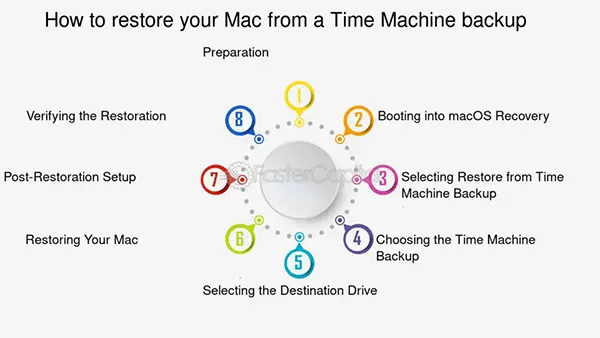
The following infographic presents the entire process:
Use the Finder
Finder is a great tool for managing stuff, and you can use this guide as the means to delete Time Machine backups, too. Thankfully, the process of deleting backups is not very difficult.
- Connect your external storage to the Mac and then locate your external drive in the Finder’s sidebar.
- Open the external drive and locate Backups.backupd.
- Inside, you want to find a folder that has the same name as your device.
- Backups will be displayed individually, and the date it was created will highlight its name.
- Right-click on the backup you want to remove. You need to move it to the Trash, and then all you have to do is empty the Trash. Lastly, eject the external drive, and you will be good to go.
The problem that comes from deleting these backup files via Finder is that it can be rather risky. You can have incomplete restores or corrupted backups, which is naturally a challenge that you want to avoid. There’s also data loss, and issues with the Trash can arise, too. So it always helps to address these issues, and doing that rightfully is going to make the experience a whole lot better.
Use the Terminal
Although the Terminal is meant to be more of a complex solution, it can still offer some really good results. The idea here is that you want to enter the Terminal and, in it, you use the “tmutil listbackups” command.
Then, backups are displayed by date, and you create a note of the directory path for each backup. You enter the command “sudo tmutil delete” followed by the path and then press Return. It’s better to use a dedicated tool instead of the Terminal; if you are accustomed to it, that might actually be a good idea, too.
Is it possible to turn off the Time Machine automated backups?
Yes, that can be done. You just have to enter: System Settings/General/Time Machine. Here, your focus is on connecting the external hard drive and then waiting for it to install. Click Options and then choose Manually next to the backup frequency. You can turn off the automated backups if you want, but ideally, it makes sense to still do some from time to time. That way, it will be safer.
Deleting snapshots is also possible, via snapshot thinning or the Terminal, if you want. Unfortunately, Time Machine doesn’t delete the backups on its own, as its focus is on restoring files. So if any issues appear, it needs a backup to restore the device to its proper state. Deleting backups is going to interfere with that premise.
Conclusion
It’s clear that deleting the Time Machine backups is a very good idea, and it’s one of those things that can help save quite a bit of space on your side. Granted, it has its own fair share of problems, but knowing how to tackle and adapt that will help a whole lot more. Yes, it’s a bit of a hassle at first, but knowing how to manage those saved backups will make a massive difference in the end.