How to Download Videos with VidMate
Jump To Key Section
According to Nielsen’s report, U.S. adults spend almost 6 hours per day watching videos. While streaming is convenient, it isn’t always practical when you’re traveling, dealing with slow internet, or trying to conserve mobile data. That’s why many users choose to download videos for offline viewing.
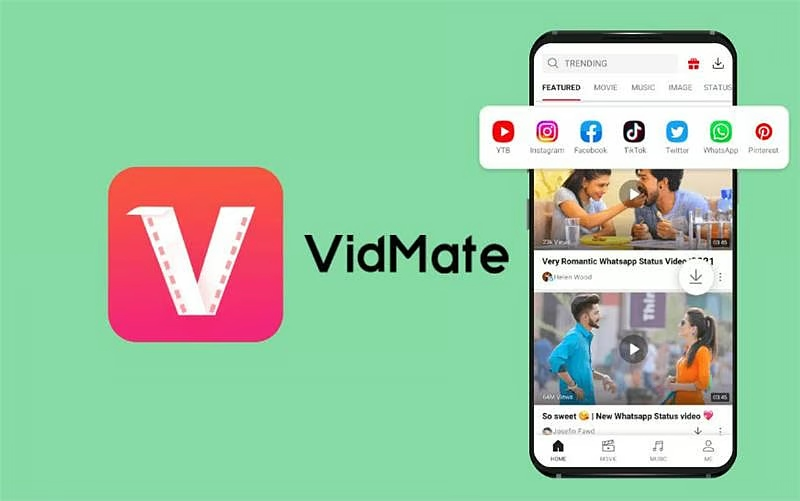
VidMate is one of the most popular Android applications for downloading videos, music, and other media content for offline access. It supports multiple video formats, different resolution options, and includes built-in tools for managing and playing downloaded files.
In this guide, you’ll learn how to install VidMate, download videos, choose the right quality settings, and manage your media library efficiently.
KEY TAKEAWAYS
- VidMate allows Android users to download videos, music, and other media for offline access.
- Users can download content through in-app search or by pasting a direct video link.
- Multiple resolution options help balance video quality and storage usage.
- Built-in playback and file management tools make organizing downloaded content easier.
What Is VidMate?
An Android app, VidMate allows users to download videos, music, and other media to their devices to consume offline.
Some notable features include:
- Video downloads in multiple resolutions
- Audio and music downloading options
- Built-in media player
- Fast download technology
- File management tools
- User-friendly interface
- Support for multiple media formats
These features, which also include offline access, are key elements for digital content.
Why Download Videos For Offline Play?
Many users prefer downloading videos instead of repeatedly streaming them online.
- Save Mobile Data: Streaming is a heavy user of mobile data. Once the content is downloaded, though, the stream goes dry, which is to say it may be watched again and again at no additional data cost.
- No Internet Required: Videos can be accessed at any time, which is also when the internet is not available or is unstable.
- Convenient Travel Viewing: Many people download video content in advance, which they then enjoy on planes, train trips, or during long commutes.
- Access Educational Content Anytime: Students and professionals also save tutorials, lectures, and training videos for later.
How to Download and Install VidMate
Before using VidMate, you’ll need to install the application on your Android device.
Step 1: Download the Installation File
Get from a trusted source the latest version of VidMate.
Step 2: Enable Unknown Sources
Since in some cases the application may not be found on standard app stores, Android users will have to go to settings and enable installation of unknown sources.
To do this:
- Go to Settings.
- Go to Security or Privacy Settings.
- Find the Install Unknown Apps option.
- Allow installation of apps from unknown sources.
The exact options may vary by Android version and device manufacturer.
Step 3: Install the Application
After downloading the installation file: Upon downloading the installation file:.
- Open up the file.
- Press Install.
- Wait until the installation process finishes.
- Once installation is complete, open the application.
The app is out and available.
SURPRISING FACT
VidMate allows downloading music and videos in MP4 or MP3 format from 1000+ sites, including YouTube, TikTok, Instagram, and Facebook.
How to Download Any Videos Using VidMate
Once installed, downloading videos is straightforward.
Method 1: Search within the App
- Open VidMate
- In the search bar, enter what is being looked for.
- Choose from the list of videos.
- Click the download button.
- Select your choice of resolution and format.
- Go ahead with the download.
The video will begin downloading immediately.
Method 2: Paste a Video Link
To download any videos you see, just do the following:
- Copy the link to the video you wish to save.
- Open up VidMate.
- Enter the link in the search field.
- Allow for the analysis of the content.
Choosing the Right Video Quality
- Begin the download.
This one works best when the user already has a specific video link.
VidMate has a large selection of quality options.
Common choices include the following, which are popular:
- 144p
- 240p
- 360p
- 480p
- 720p HD
- 1080p Full HD
Higher resolution provides better fidelity but also more storage. As a user, choose the option that best fits device storage and viewing needs.
Downloading Music and Audio Files
VidMate can also download just the audio of a media, making it useful for music, podcasts, interviews, and educational content.
To download audio:
- Find the media you want.
- Click on the download.
- Choose an audio-only option if it is available.
- Begin the download.
This feature is for users who require just the audio element of media.
Managing Downloaded Files
VidMate includes built-in file management features that make organizing downloaded content easier.
Users can:
- View completed downloads
- Pause active downloads
- Resume interrupted downloads
- Delete unwanted files
- Access downloaded media quickly
Effective file organization, which in turn maintains available device storage and keeps content in order.
Using the Built-In Media Player
Downloaded videos can be played directly within the application.
Features of the built-in media player include:
- Quick access to downloaded content
- No longer is a separate video player required
- Convenient playback controls
- Easy media management
This integrated feature sets up a better user experience.
Tips for Better Download Performance
For a better download experience, try out these:
- Use a Stable Internet Connection: A fast internet connection, which in turn will improve download speed and reduce interruptions.
- Monitor Available Storage: Before downloading large files, make sure to check free storage space.
- Keep the Application Updated: Using the current version may lead to an improvement in performance, compatibility, and stability.
- Download Appropriate File Sizes: Selecting a resolution that does what is needed will also help in saving storage space at the same time as getting good video quality.
Important Considerations
Ensure your use of the downloaded media complies with applicable copyright laws, platform policies, and content ownership rights.
Users should also be careful to only install Android apps that they get from trusted sources.
Conclusion
VidMate offers an easy way to download videos, music, and other media content for offline viewing as per your requirements. With support for multiple formats, adjustable quality settings, built-in playback, and file management tools, it provides a complete media-downloading experience for Android users.
By way of the installation and download guides provided above, VidMate may be put to use to save whatever content is preferred and enjoy off-grid viewing at any time. For entertainment, education, or simply out of convenience, it also includes many options that present media downloads at a very easy and accessible level.
FAQs
Ans: Yes, it’s a free application with video and audio downloading features.
Ans: Yes. Depending on the source and availability, VidMate supports resolutions up to 720p HD and 1080p Full HD.
Ans: Yes. Many supported media files can be downloaded in audio-only formats, making it useful for music and podcasts.
Ans: No. Once a video has been downloaded successfully, it can be viewed offline without an active internet connection.