Best PDF Editor Options for Compressing, Editing, and Signing PDFs
Jump To Key Section

Compressing, editing, and signing PDFs is an everyday task for students and professors alike. When a deadline approaches, everyone looks for a quick way to get things done right without complications.
Furthermore, the PDF editor software should be practical and easy enough for even a beginner to grasp and use its tools for their work.
In this post, we have highlighted the best online tools you can use to edit, sign, compress, and structure your documents without ever slowing yourself down.
Key Takeaways
- Using different PDF editors for various purposes
- Splitting, merging, and compression of documents
- Editing the text content of PDFs with ease
- Choosing the best option for your use
PDF Guru
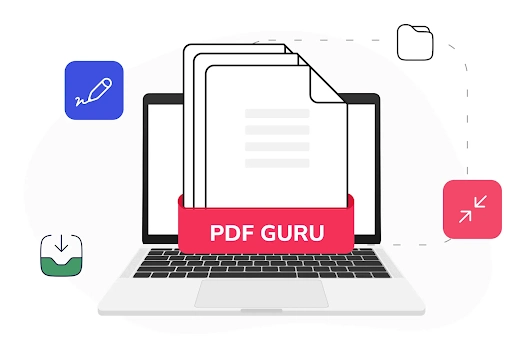
PDF Guru is simple enough for daily tasks. Still, it is ideally suited for situations where docs move through many hands.
According to Best PDF Editors, an independent platform that bases its rankings on in-house research, PDF Guru holds the “Most Popular” title thanks to its practical features.
Editing and Converting
With this tool, you can easily make layout corrections, adjust your images, and edit any text present in the document. It also gives the user multiple options to convert documents, images, and other formats directly to a PDF.
You can also create a new file from a blank page. These tools are great when you often work with reports and forms, or when you need to adjust formats and make the file look clean when it’s messy.
Page Control
Rotate pages, delete the ones that don’t belong, extract entire sections, or reorganize a long document.
Solid PDF document management features let you work safely with all chaotic files you can imagine: mixed-up scans, stitched-together materials, or very long files with broken structure.
Splitting, Merging, and Compressing
Large files are a headache, but the best PDF editor tools let you tackle them easily. The split tool breaks them into digestible parts.
Using the merge tool, you can combine all related pages into a single clean document. It is even possible to compress your largest files, making it easier to send or store.
Notes and Signatures
Do you have forms and agreements that move through your workflow often? The eSign feature is capable of annotating, highlighting text, and even inserting comments for review, all without ever needing to print or scan the document yourself.
With all the best PDF tools in one place, PDF Guru may be precisely what you’re looking for when working with digital documents day after day.
Egnyte
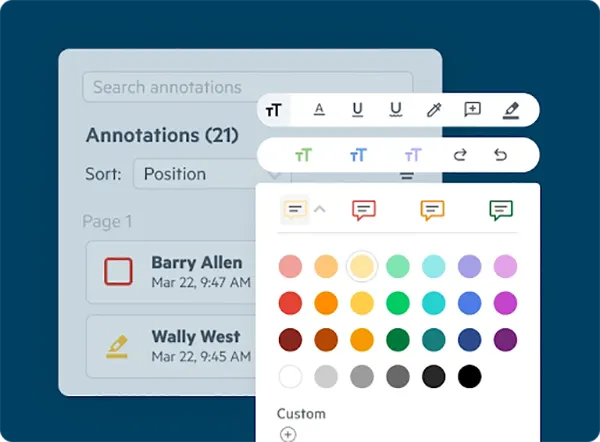
Egnyte is mainly a cloud storage and collaboration platform. Yet, it has tools for handling formatted files. You can preview them, make simple annotations, and even do basic edits right inside the platform. For a team, it’s handy to keep things in one place here.
Viewing PDFs
The viewer is practical: you can scroll with thumbnails, zoom in, search text, or switch to full-screen. You can see all notes and highlights in a single list. Egnyte works on both the Web and iOS, handling files up to 500MB.
Editing PDFs
With the optional add-on, you can also edit docs. Highlight text and add notes, rotate, rearrange, or delete pages, and fill forms. Changes are saved directly in connected apps. But to unlock a file for editing, you need the proper permissions.
Practical Use
Egnyte is perfect for users who are looking to make quick tweaks and changes to their documents, but it is not a full-structured software for advanced editing of PDF files.
So if you often need to move pages, merge documents, or make detailed edits, you may find it restrictive.
Google Drive
Google Drive primarily supports portable documents as a cloud viewer and offers basic collaboration tools. It’s great if you mainly need to navigate and share files.
Viewing and Navigation
The document viewer has a beginner-friendly and intuitive interface containing a sidebar of the table of contents, making it easier to go through the document quickly.
In the tool, you can also zoom, search, download, and print your doc. And if you have long reports or contracts, Google’s AI tool, Gemini, can summarize the content.
Collaboration
You can comment, co-view files in real time, or share links with different permissions. And if you need to edit the text itself, you shall first convert the file into Google Docs.
Practical Use
Google Drive is handy for reviewing, sharing, and discussing. This may not be the best PDF editor for page-level edits or document signing. However, it’s convenient for collaboration or quick text fixes.
Did You Know?
Earlier, PDF editors only had the functionality to add or change texts of a document. Now, users can even input music, videos, and 3D models using some advanced editors.
Preview (macOS)
Preview is the built-in PDF tool on macOS. It combines a viewer and basic editing and markup features. It’s convenient, foremost because it allows for quick work without opening any apps.
Viewing and Navigation
It provides a unique display containing sidebar thumbnails, allowing you to shuffle through pages and its table of contents.
Additionally, there are full-screen and zoom options to provide more accessibility to the user and view document pages side by side.
Editing and Markup
Preview lets you highlight, add notes, shapes, and text boxes; redact content; crop or rotate images; fill out forms; and create signatures with a trackpad, camera, or iPhone.
You can merge, rearrange, delete, or extract pages and set passwords. For many Mac users, this makes it the best PDF editor for simple tasks.
Export and Optimization
Files can be compressed via Quartz Filter, converted to JPEG, PNG, or Word, and effects or filters can be applied. You can also lock documents to prevent changes.
Practical Use
Preview is great for quick edits, annotations, signing, or light page management. It handles everyday electronic files smoothly. Yet, it doesn’t support OCR, batch processing, or direct text editing of scanned content.
Bottom Line
Alt text: PDF editor functionality
So, which PDF editor is the best among all? Well, that just depends on your usual tasks. PDF Guru is the tool that offers the most complete set of tools for various editing needs.
Other options, such as Egnyte, Google Drive, and Preview, cover simpler needs, such as viewing, commenting, or light edits. For complete control and consistent workflow, a dedicated editor like PDF Guru makes the most sense.
Ans: PDF editors help in making quick changes and tweaks to documents, and simplify the workflow of users by offering many editing tools.
Ans: Definitely, most PDF editors let users alter the order of pages of their documents with existing tools.
Ans: You can use a PDF editor to secure your documents and can even add a password to it, allowing only authorized people to access your file.
Ans: Using the compression tool of PDF editors, one can considerably decrease the file size of the documents without harming their layout or structure.