How To Start A Seedance 3.0 Clip From The Homepage
On many platforms, the clips start distorting before any major changes; this happens because resolution and audio toggles should not be the first thing to edit on such platforms.
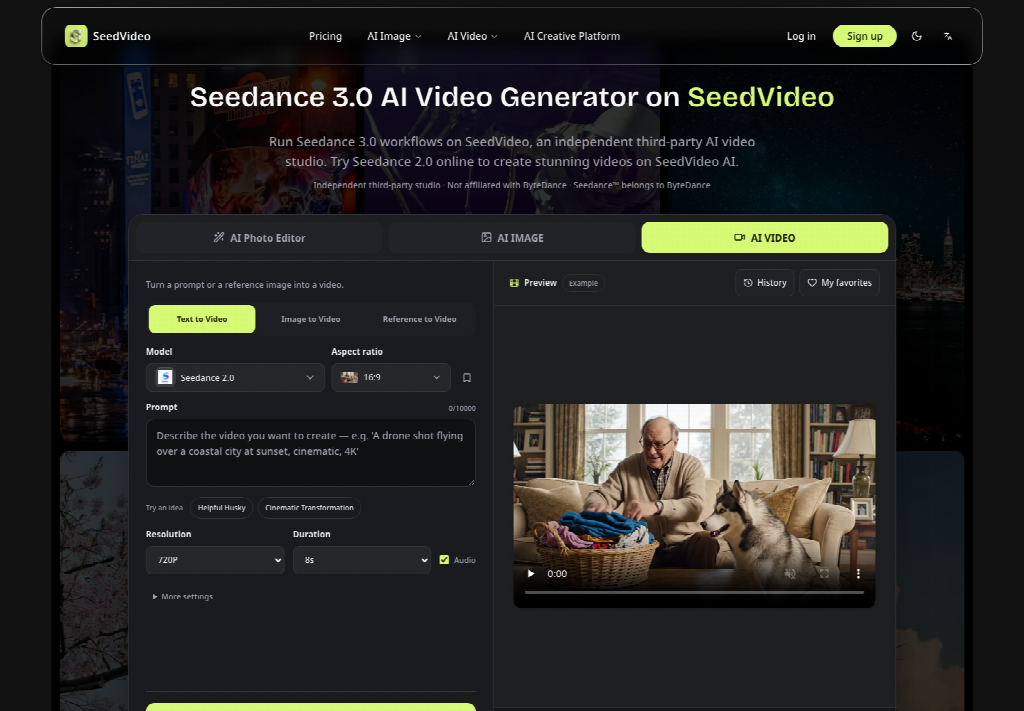
You can do this work efficiently by creating a shortcut on the homepage, choosing how you will enter, writing a prompt according to your requirements, and pressing generate. That is the practical way to begin with Seedance 3.0 when the page is already teaching Text to Video, Image to Video, and Reference to Video as the first decision.
SeedVideo is an independent third-party workbench for Seedance workflows that does not present itself as a ByteDance property.
Their idea of serving is simple: if mode, prompt, and generation stay in order, users will spend less time rearranging the settings.
Why Homepage Starts Fail Before The First Prompt
People often treat a generator the same as they do with a mixing desk. They open More settings energy in their head, flip Aspect ratio, Duration, and Resolution, then paste a mood paragraph that asks for character, camera, and beat at the same time. The strip can still run, but the first output becomes a stack of unresolved jobs. When the face drifts, or the product bends, the first thought is to blame the model, even though the entry path never locked a single job.
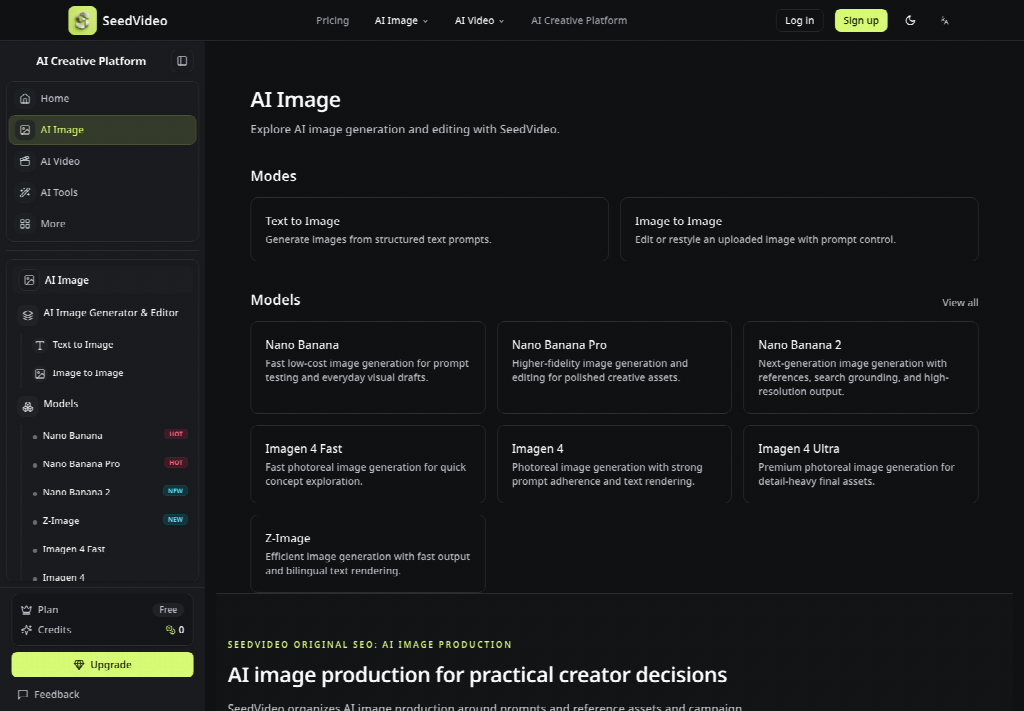
A better homepage habit is almost boring. Decide what the clip has to preserve before you care how long it runs. If you already hold a product in place, Image to Video is the best choice. If you only have a line of action, Text to Video is brilliant. If motion or camera language lives in another clip, Reference to Video deserves a chance. That choice is the real start; the prompt box comes second. When teams skip this lock, they often burn the next hour replacing adjectives while the wrong door is still selected, which is wasted time instead of creative iteration.
Lock The Workbench Path Before You Write Anything
On the SeedVideo homepage, the AI VIDEO strip has named the three doors. Sign up or log in when you need an account, then stay on the strip for a particular time to pick one mode before you touch Resolution or Audio. The page also presents Seedance 2.0 on the live generator while Seedance 3.0 access is listed through Explore Seedance 3.0. Keep that distinction visible so you do not create a button that is not on the strip.
Pick Text, Image, Or Reference First
Text to Video fits a coastal establishing shot, an ad mood, or any scene that remains only as language. Image to Video fits a shoe, outfit, or face that has to stay recognizable after motion starts. Reference to Video fits when you already have a camera move, choreography, or audio rhythm to borrow. Choosing two doors at the same time usually means you have not decided what must stay fixed. Write that decision as a one-liner before you use the prompt box, because the strip will happily accept a bad prompt and only later show you the worst results.
Write One Job Into The Prompt Box
The prompt field asks you to define the video you want to create. Keep the first sentence as a production brief: subject, action, one camera path, and the role of any input. If you attach references, the site’s own how-to says to tag them with @ so the description can name what each file controls. Helpful Husky and Cinematic Transformation are examples of starter ideas; use them only when you need a basic scene to edit later, not as a substitute for a clear job.
Settings That Belong After The Scene Is Clear
Once the mode and brief are stable, Aspect ratio, Duration, Resolution, and Audio does not become random knobs. Start with 16:9 when the clip will live on a webpage or YouTube crop, then change ratio only after composition success. Download the first pass short so you can judge motion and identity before you spend money on a longer cut. Resolution options on the strip include 480P, 720P, and 1080P; draft lower when you are still working on the brief. Leave Audio off till the rhythm is part of the shot you are testing. If the first two seconds are feeling crowded, raising resolution will not fix a confused brief; it only makes the same mess sharper.
- Mode: lock one of Text / Image / Reference before you write the brief.
- Aspect ratio: start at 16:9 on the strip; switch only after composition holds.
- Resolution: draft at 480P or 720P; raise after identity and framing hold.
- Audio: leave off for first checks unless beat timing is the point.
Those points are not a pricing sheet. It is a queue discipline so Generate commits one readable scene rather than five half-finished asks. Review the strip one more time before you click: mode matches the asset, the prompt names one action, and Audio is still off and will be turned on only when the beat is on the point.
What Generate Actually Commits On The Strip
The first action on the homepage is Generate, and the button shows the credit cost for the current settings. That number is a commitment signal, not a research about top-ups. Press it only after mode, brief, and starter settings are perfect. If you still need more room than the strip offers, Open full tool with these settings is the next documented click; it provides the same choices in the broader workbench instead of forcing you to rebuild the brief from memory.
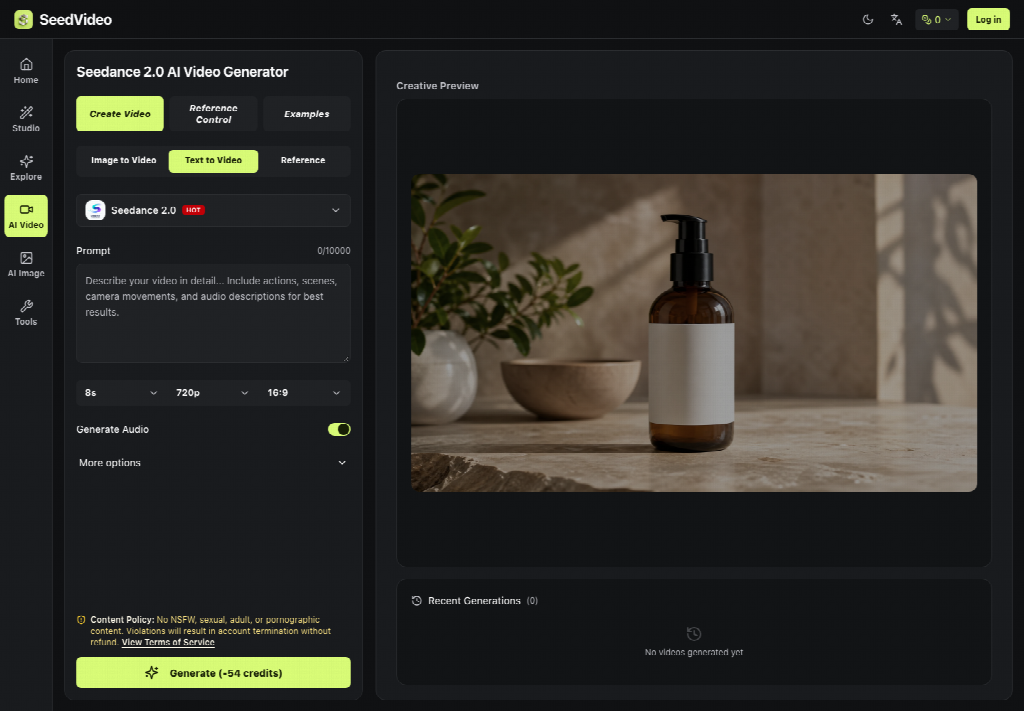
After a clip returns, the site’s own loop is extend, edit, or refine instead of restarting from a blank mood board. For Seedance 3 particularly, the FAQ path is: choose the model in the AI video workbench, upload image, video, or audio references when required, describe the vision, then generate. Paid usage is presented as watermark-free export; the content policy blocks NSFW uploads and warns that violations can delete the user’s account without any refund.
When Open Full Tool Is The Next Click
Stay on the strip when you are working on a one-shot idea. Move into the full tool when you need to keep the exact settings while you iterate, merge, or extend. The cost signal here is time: regenerating the same brief three times because you abandoned the strip mid-settings wastes hours more reliably than a single failed output.
Closing The Loop Without Another Tour
If the first output warps a logo or invents a second product edge, do not use every toggle that is left at once. Shorten the brief, define the reference role, and run one more Generate with the same mode. SeedVideo is useful here because the entry path is short enough to regenerate without becoming a scavenger hunt. When the scene finally shows improvement for the first two seconds, then increase duration or resolution. A reject at this stage should feel like a desk rule: unreadable identity or a wrong product edge does not ship, even if the camera angles looked brilliant for a moment.
Bottom line: homepage work is mode first, one-job prompt second, Creates third. Keep Resolution and Audio as late considerations. Use Open full tool only after the strip has earned a repeatable brief. That is enough structure to start a Seedance clip without making the first session a settings autopsy, and it leaves the reviewer’s frame checks for a later pass rather than pretending the entry path already completed the job.
Frequently Asked Questions
Ans: Choose Text to Video, Image to Video, or Reference to Video. The mode depends on your needs or what you want to create.
Ans: The settings you should adjust before generating the video are aspect ratio, duration, resolution, and audio, after entering the scene and prompt.
Ans: If the output is incorrect, try shortening or rewriting the prompt, keeping the existing settings, and generating again.