How I Overcame Low Frame Rates and Lag Using Smart Game Booster
Jump To Key Section
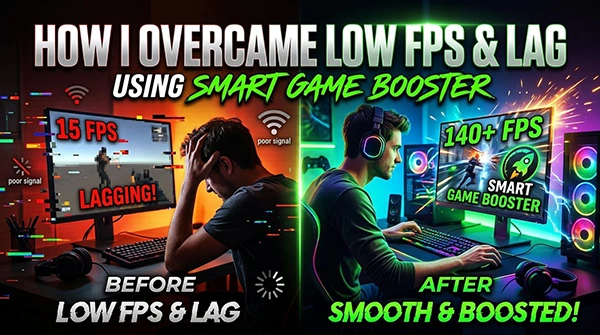
Everyone has a different experience of gaming, based on low frame rates and lag. Some games will run well on a PC, but for certain reasons the games can run slowly, inconsistently, and/or be unresponsive. It is not only the fault of a game, but we also need to find out the real cause of the issue.
Here, Smart Game Booster will help you out of the situation. It is a window optimization program for PC gamers made by iTOP Inc. This company fixes frame drops, lagging, and such problems. Let’s discuss it in detail in the article.
I Started by Checking What Was Affecting My Gaming
One thing that I liked about Smart Game Booster was that it was capable of providing me with some useful tools that are related to the gaming experience. Rather than having to check each of the various Windows settings, background software, drivers, and network problems, I could start from one location.
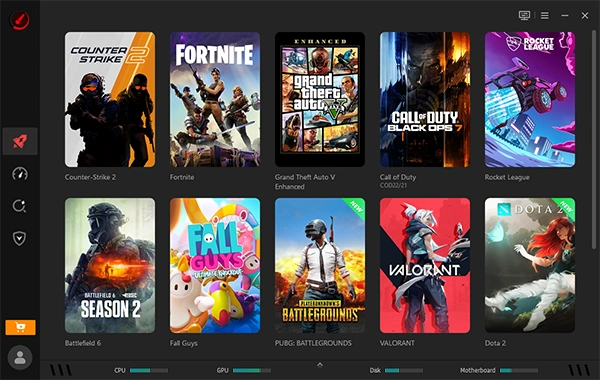
The updated version 6.0.0.1146 is compatible with Windows software and has improvements that could benefit both the performance of the PCs and the gaming experience. I was waiting for an answer to where my problems would be if I made changes. Low Frames Per Second (FPS) and lag are not the same thing, so I went through the features available rather than making random changes.
Game Boost Gave Me a More Direct Way to Tackle Low FPS
One thing I worried about a lot was the FPS, specifically when it got more challenging. I used the Game Boost function to tweak the gaming environment rather than having to go into a lot of system configuration.
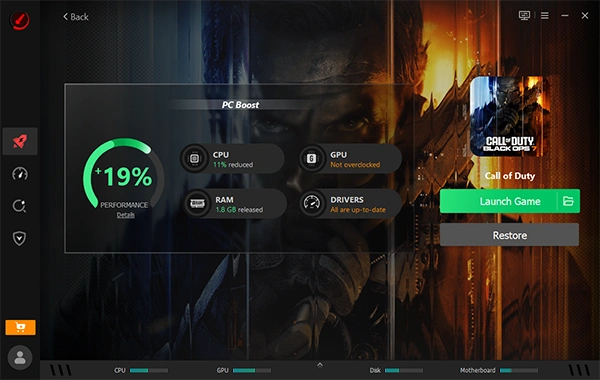
The software has built-in performance-optimising characteristics that help to maximise system resources for games. Another aspect might help to increase the speed of the GPU and VRAM by up to 30% on PC, according to iTop’s product claim.
I didn’t accept that number as a fact, but as a chance. A variety of factors, including hardware, game settings, temperatures, and other elements, may influence real performance. I wanted to have some routine and procedure to address the FPS issue, instead of continuously tweaking settings and having completely no idea what I was doing.
PC Boost Helped Me Look Beyond the Game
After focusing on the game and the network, I knew that my PC could also have an effect on the game—resources used by some background programs/services when I want to play.
I turned on PC Boost to concentrate on those background processes. It is deliberate for removing unnecessary applications and services, while simplifying the improvement process. It was nice to have because it can be time-consuming to manually check each of the processes running in Windows, particularly if I don’t know which I can safely alter.
Other apps contained in Smart Game Booster are also system cleaners, system tweakers, driver updaters, and game defragger. It also has an Auto Boost feature: if a game is about to open, it will unconsciously switch on the gaming mode, which can speed up getting to a game.
I Realised That Some Lag Was Not an FPS Problem
After watching the frame rates, I was thinking about something else: Network lag. Having a good FPS and a bad internet connection can make for a terrible experience. Controls will lag, possibly be disabled fully, when delayed actions, loss of packets, and high ping occur.
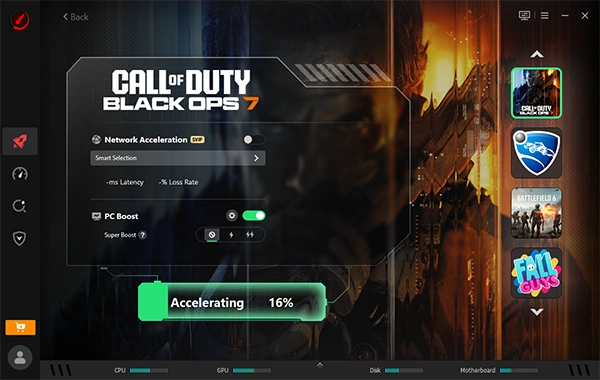
That’s where the Game Accelerating feature was established. Smart Game Booster 6.0 includes more than 500 game servers internationally and includes Network Acceleration. The feature, depending on gaming routes, lowers latency, reduces packet loss, and uses an alternate network.
This one is very crucial to me. The major problem in FPS problems is the depiction and the resources of the computer, while in network problems it’s dealing with the PC and the game server. Having both of these efficiently was able to give me a wider look at trail.
I Used Performance Monitoring to See What Was Happening
The final part of my process was checking performance instead of simply supposing everything was fixed.
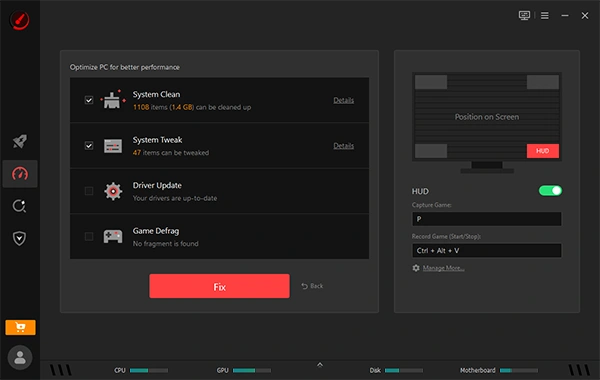
More than a FPS Booster, Smart Game Booster has immediate monitoring tools to view hardware temperature and resource usage. That was another way to understand what was going on as I was playing games. Rather than being concerned with how the game played, I could also be worried with how the system acted as well.
Furthermore, the software features more than 160,000 games, 3,000 GPUs, and 9,000 CPUs in a Can I Run It feature. When I want to be certain something will play before spending time working out a game.
What Changed in My Approach
I didn’t anticipate a magic one-click solution with the use of Smart Game Booster. Instead, it made me think about how to deal with low FPS/lag. I could break it down into various possible causes – game optimisation, network performance, background processes, drivers, and hardware monitoring.
The main thing to recall when looking for an FPS Booster is that this is not the same thing as increasing the FPS. To find an FPS Booster, you require to understand that FPS and network lag are two different things. A tool that is geared towards FPS could help to optimize the system and interpretation; however, network speeding up is the solution to connection issues.
My Final Takeaway
I can say that I have had a lot of experience with Smart Game Booster as it has organised the rectifying process. All this I could do within the same application – add my game, use Game Boost, see the presentation of the network, reduce unwanted background activity, and view the performance of my system!
I don’t think any of the ads are a sure thing, but I’d recall that it all depends on the individual PC/GAME composite. However, having all this information at my fingertips would empower me to test out the settings and see why I was getting such slow FPS and lag when compared to playing with my fingers and guessing.
Last but not least, it wasn’t this one setting that created the biggest difference. The consensus was that smooth play takes several elements to come together: The game, PC finances, graphics card, graphics drivers, temperatures, and connection to the Internet. Smart Game Booster aided me to the point where I could review those areas and have a systematic way of examining how the game performs.
FAQs
Ans: Smart Game Booster can sometimes help with stuttering and background bottlenecks, though it rarely delivers the dramatic FPS jumps advertised.
Ans: A game booster can reduce lag, mostly by stopping background apps, blocking instructions, or stabilizing network routes.
Ans: Game boosters are partially real, but often fake; they cannot upgrade your hardware, though some can modestly improve smoothness by managing background tasks and system settings.