How to Transcribe MP4 to Text Online or on a Mac
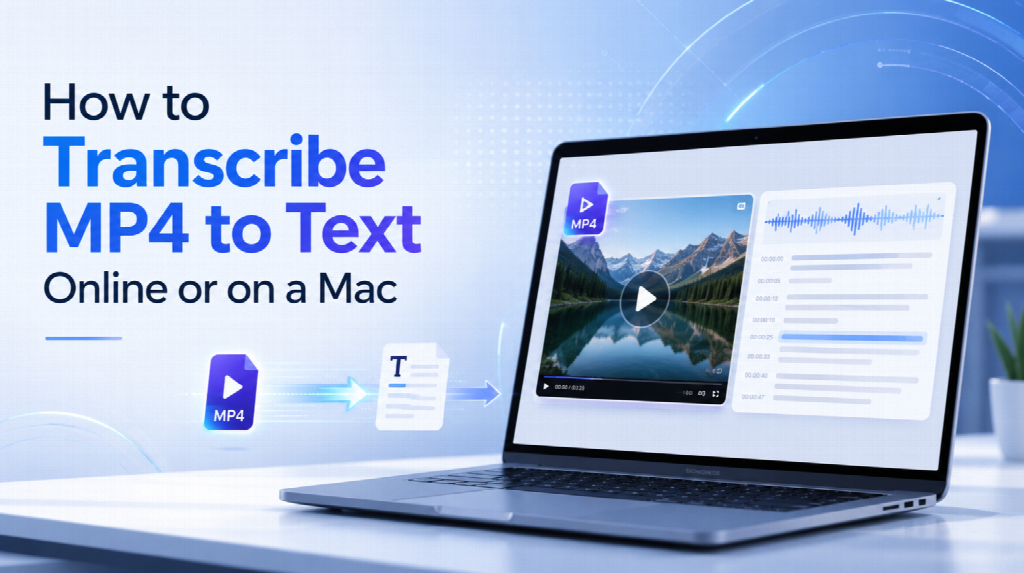
Converting an MP4 video to text form will help you spend less time reviewing the video during another viewing for a meeting, organizing an interview, researching a lecture, etc.
However, transcription of an MP4 file will depend on several factors: audio quality, size of the video, change of the speakers, settings of the language used, and so on.
Thankfully, the online services as well as the Mac versions allow users to transcribe the video pretty easily. It does not matter whether you are looking for an instant service via a web browser or a program for a computer.
What to Check Before You Transcribe an MP4 File
Before you transcribe MP4 to text, check a few key details that can affect the transcription process and the amount of review required afterward.
- Audio Quality – Speech recognition depends on the audio in the recording rather than the visual quality of the MP4. Background music, echo, distant microphones, and overlapping voices can make individual words hard to recognize. A high-resolution video will not compensate for unclear speech, so check the audio before spending time processing a long recording.
- Number of Speakers – Interviews, meetings, and panel discussions are easier to review when the transcription tool can distinguish speaker turns. Speaker identification can organize longer conversations, but automatic labels still need to be reviewed when people interrupt each other, speak at the same time, or have similar voices.
- File Size and Duration – A long or high-bitrate MP4 may require more time to upload and can use a large portion of a free transcription allowance. For local transcription, file length instead affects storage and processing demands. Checking the recording length and file size beforehand helps avoid interruptions once the transcription process begins.
- Privacy Requirements – Recordings that you have permission to upload may be fine to go through a web-based transcription service. Internal meetings, client conversations, research interviews, or other sensitive material may require stricter handling. If the recording should not leave the device, look for a local transcription option rather than assuming every online workflow is appropriate.
How to Transcribe MP4 to Text Free Online
If you want a free way to transcribe an MP4 online, a browser-based tool lets you get started without installing any additional transcription software. Before uploading a long recording, check how many free transcription minutes are included, as well as any limits on file size or exports. This will give you an idea of whether the free package would be enough for your recording.
Hoocs AI is one option for this type of online transcription. You can upload an MP4 directly from your device or paste a supported media URL if the video is already online. New accounts currently include 300 free transcription minutes available for 15 days. Once the transcript is generated, you can review and edit the text in your browser before downloading the final version.
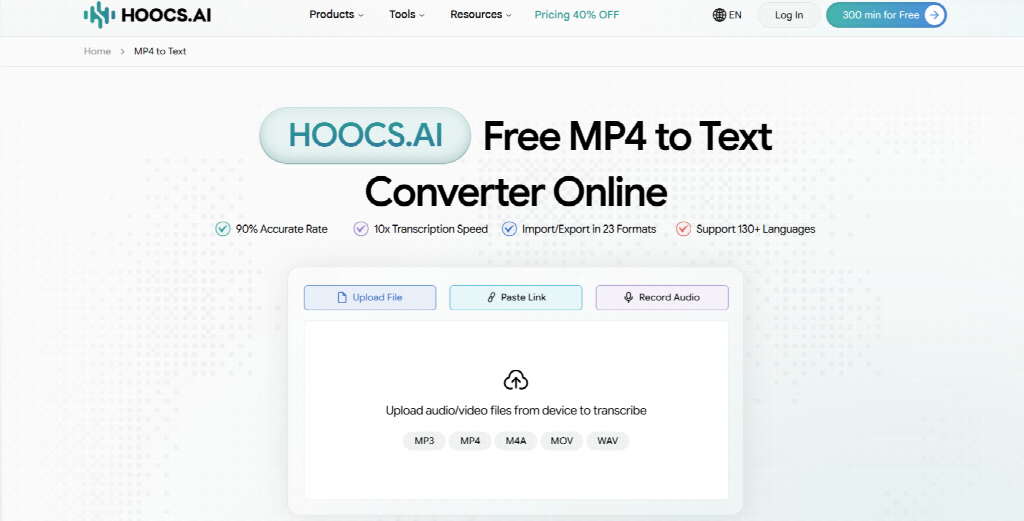
After selecting your source, the rest of the process is easy. The next steps show how to set up the transcription, review the result, and prepare the final text for export.
Step 1: Upload Your MP4 or Paste a Video URL
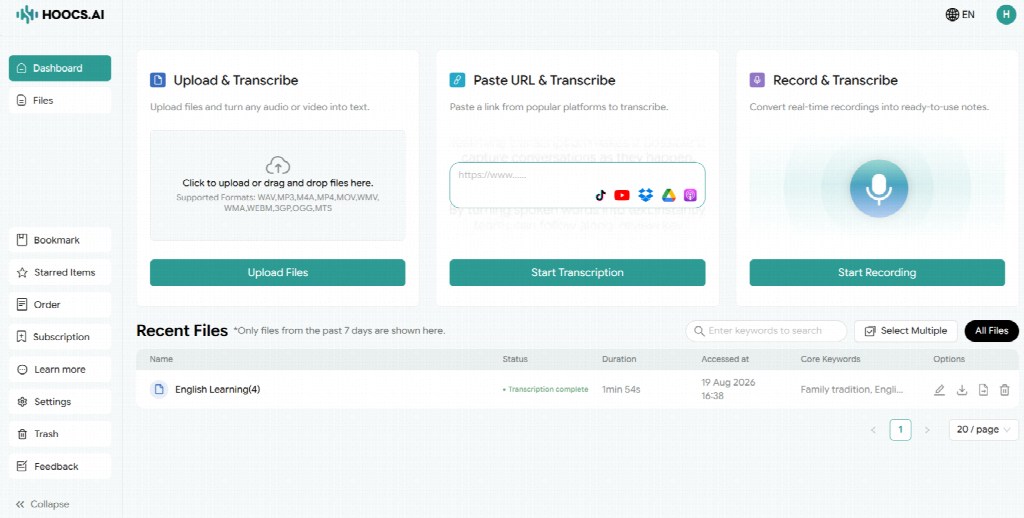
Log in to the Hoocs AI platform and decide whether to upload or paste the video. For a local MP4, select Upload & Transcribe, then click Upload Files or drag the file into the upload area.
If the source is already online, use Paste URL & Transcribe with a supported link from sources such as YouTube, TikTok, Google Drive, or Dropbox.
Step 2: Choose Language and Speaker Settings
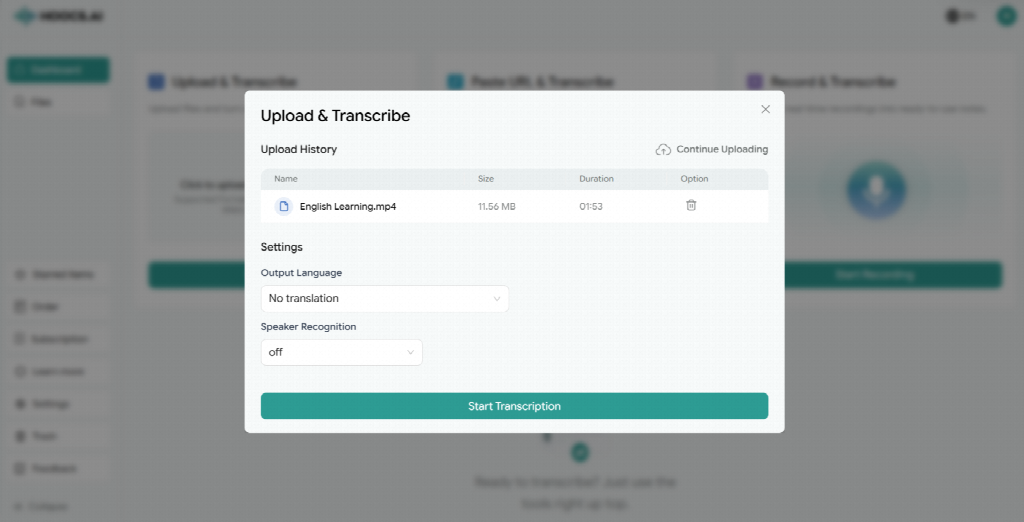
Before starting, select the language spoken in the video. There are 130-plus languages available at Hoocs AI that include English, Spanish, French, Japanese, etc. For interviews, meetings, or other multi-person recordings, turn on Speaker Recognition to organize the transcript by speaker turns. Click Start Transcription and wait for processing to finish.
Step 3: Review and Edit the Transcript
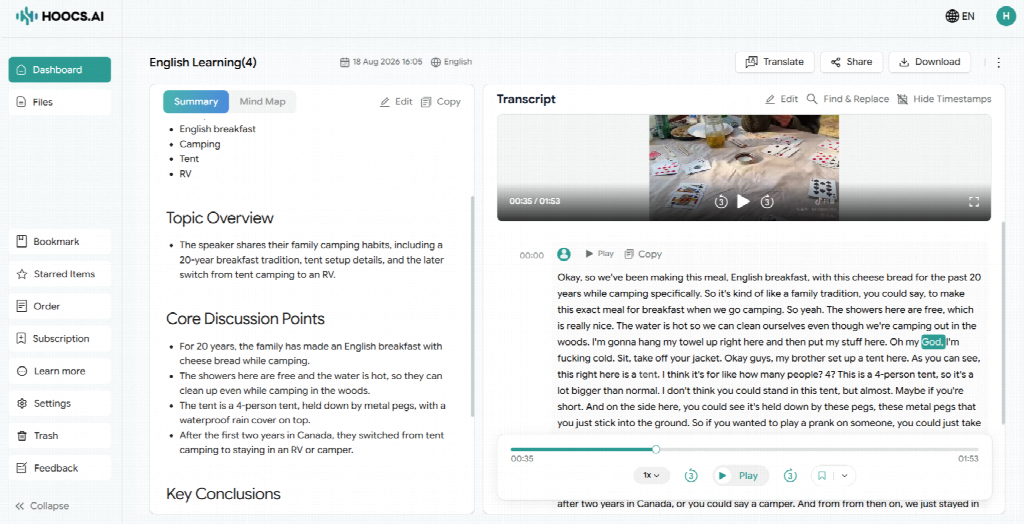
Before exporting the transcript, proofread it for any inaccuracies. Check information such as names, numbers, acronyms, and technical terms, which usually need manual correction. For multi-speaker recordings, review the speaker labels as well. Use the timestamps to return to the original video when an exact quote or figure needs verification.
Step 4: Export the Finished Text
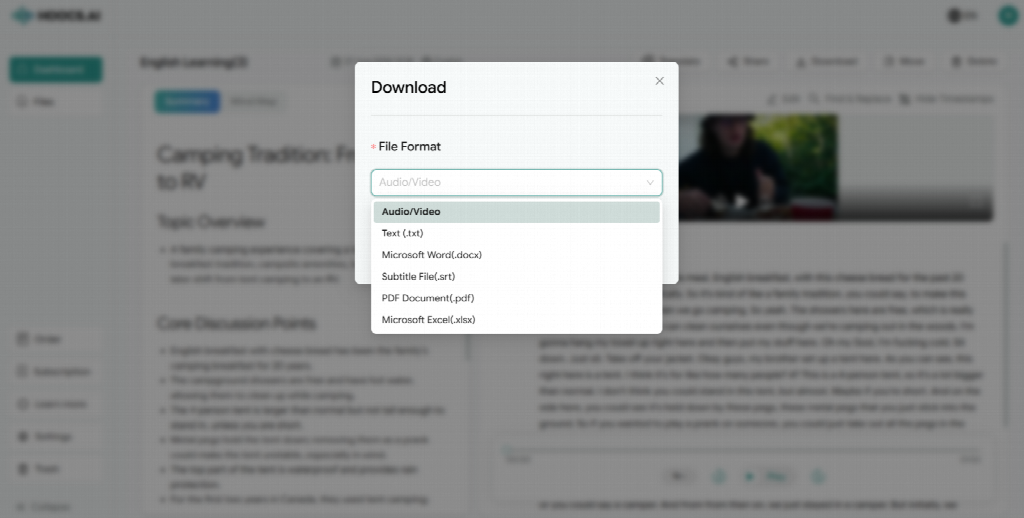
After reviewing the text, choose the format that fits your next task. Export as TXT for plain text, DOCX for editing, PDF for sharing, or SRT for subtitles. Make any final corrections before downloading the file.
How to Transcribe MP4 to Text on a Mac
Transcribing an MP4 audio file using a Mac computer does not involve an entirely separate transcription process. The main decision is whether to use a browser-based service or run compatible transcription software locally. The browser route prioritizes convenience, while local processing becomes more relevant when internet access, privacy, or file handling makes uploading the recording problematic.
Use a Browser-Based Transcription Tool
Mac users can follow the same online process described above in Safari, Chrome, or another supported browser. There is no dedicated transcription software to install, making this approach suitable for occasional MP4 files or people working across several devices. Upload speed and the service’s file or usage limits remain the main practical constraints.
Use Local Transcription Software
Local transcription software works by having the file transcribed on the Mac instead of sending the MP4 through the online upload flow. This can suit interviews, internal recordings, or offline work where keeping the source on the device is important. It does, however, require compatible software and may also require local speech models or additional storage.
Transcribing performance will depend on the software you use, the Mac hardware, and the recording you need to transcribe. A newer machine may process long files comfortably, while older hardware can take considerably longer. Local processing should not be confused with free processing: pricing and feature limits depend on the software being used.
These two types of Mac workflows differ from each other mainly in terms of:
| Factor | Browser-Based Transcription | Local Transcription on Mac |
| Setup | Open a browser and add the source | Install compatible software |
| File handling | Usually uploaded or imported | Can remain on the Mac |
| Free access | Usage or plan limits may apply | Depends on the software |
| Large files | Upload speed and limits matter | Hardware and storage matter |
| Privacy | Depends on the service | Local processing can reduce uploads |
| Best for | Quick or occasional transcription | Offline or privacy-sensitive work |
Common Problems When Transcribing MP4 Files
Various factors can affect the quality and efficiency of MP4 transcription. Some problems come from the source recording, while others appear during upload or transcript review. The sections below cover the most common concerns and how to handle them.
Poor or Noisy Audio
Background music, echo, wind, distant microphones, and overlapping speech can reduce transcript quality. Use the best possible clean recording and remove irrelevant sections when practical. If an important sentence remains unclear, compare that section with the original audio instead of repeatedly generating a new transcript from the same source.
Slow Uploads or Large MP4 Files
Large MP4 files can take longer to upload or exceed a platform’s limits. Check file-size and duration requirements first. If needed, split a long recording or compress the video. You can also extract the audio to reduce file size, but it is better treated as a fallback when direct MP4 upload is impractical.
Incorrect Speaker Labels
Similar voices, interruptions, and overlapping dialogue can lead to incorrect speaker assignments. Review transitions between speakers and correct labels where necessary. For an interview transcript meant only for personal use, a quick look should be enough; however, for quotes that are meant to be published, a more thorough review is called for.
Misspelled Names and Technical Terms
Personal names, brand names, acronyms, and technical vocabulary are some of the areas in which transcriptions can go wrong. Use search and replace when the same incorrect term appears throughout the document. For unfamiliar names or important technical wording, return to the relevant timestamp and verify the phrase against the recording before publishing or sharing the transcript.
Conclusion
If you need to transcribe an MP4 to text, choose the method that fits the recording rather than the longest feature list. Browser-based tools are convenient for quick online work, while local Mac software may suit files that need to stay on the device. The right choice depends mainly on your intentions regarding the recording.
Whichever route you use, the goal is the same: a transcript that is easy to review, edit, and use for the next task. Hoocs AI is a browser-based technique for people who like to work online, while there are situations when local software can still be used. Choose the setup that matches the way you actually work.
Frequently Asked Questions About Transcribing MP4 to Text
Can I transcribe an MP4 to text for free online?
Yes. Some browser-based transcription services provide free minutes, trial access, or a limited free plan. Check the available transcription time, maximum file size, export options, and whether credits expire. Those limits determine whether a free plan is suitable for one short recording or a larger transcription project.
Can I paste a video URL instead of uploading an MP4?
It depends on the service. Some transcription platforms accept supported media URLs in addition to local files. Hoocs AI includes URL-based input for supported sources, which can save a download-and-upload step when the original recording is already available online. The link still needs to be accessible and supported by the platform.
Does video resolution affect MP4 transcription?
Not in the same way audio quality does. A 4K recording does not automatically produce more accurate speech recognition than a lower-resolution copy with the same audio. Higher resolution can actually increase file size and upload time. Clear speech, limited background noise, microphone placement, and reduced speaker overlap matter much more for transcription.
Can an MP4 transcript include speaker labels and timestamps?
Yes, when the transcription platform supports those features. Speaker labels make interviews and meetings easier to follow, while timestamps provide a quick route back to the relevant moment in the recording. They are particularly useful when reviewing quotations or preparing subtitles, though automatic speaker assignments should still be checked before final use.