AI HD Video Converter vs Traditional Format Converters: What’s the Difference?
When you search for a video converter online, you will get two very different tools that look similar at first. You can change file types and make your video HD. So why does the same 720p clip look sharp in one and soft and grainy in the other? It’s because one just makes it bigger, and one actually fixes it.
Read the full blog to learn more about AI HD converters vs. traditional converters.
Traditional Format Converters: What They Actually Do
Traditional converters have been around for a long time. HandBrake, VLC conversion, most free online “MP4 converter” sites – they are all in this group.
Their job is remixing and re-encoding. That means:
- Format conversion: MOV to MP4, MKV to MP4, WebM to MP4
- Codec conversion: H.264 to H.265, or vice versa
- Bitrate, frame rate, or file size conversion
- Optionally, resolution conversion: 480p to 1080p, 720p to 1080p
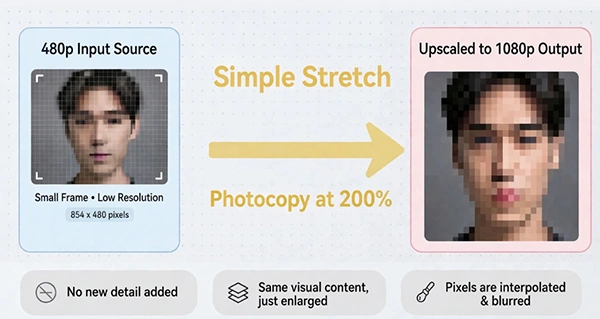
The final point is where everyone gets confused. Yes, a normal converter lets you take a 480p file and export it as 1920×1080. Technically, it makes the video frame bigger. But it doesn’t add any detail. It just enhances the pixels you already have. So if your original had soft edges, grain, or blurry text, all that stuff just gets stretched larger too.
This is the same as making a copy of a low-res image at 200%. Of course, the copy will be bigger, but there will be no difference in clarity. Also, any noise and other errors will grow.
Traditional converters are great when you have a good-quality image and require another format for it. In case you shoot sharp 4K images in MOV and need 1080p MP4 for web upload, they do wonders.
Where they fall short is restoration. If your source is already low quality – a WhatsApp-compressed clip, an old 480p phone video, a Zoom recording at 540p – a traditional converter can’t clean it up. It can only repackage the blur.
AI HD Video Converters: What Changes
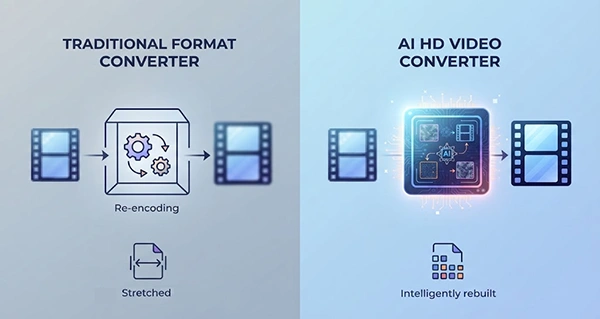
An AI HD converter does the same conversion job as well, but it adds a cleanup step before it saves the file. Rather than just stretching pixels, it analyzes each frame. It looks for noise, compression blocks, soft edges, and uneven color. Then it reforms the frame at the target resolution.
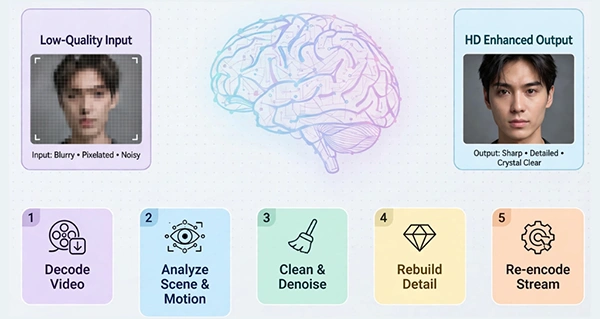
So the pipeline varies:
- Traditional: Decode -> Resize frame -> Re-encode -> Done
- AI HD: Decode -> Analyze scene + motion + depth -> Clean noise + refine edges + correct color -> Rebuild frame at 1080p/2K/4K -> Re-encode -> Done
With AI HD Video Converters, you don’t end up with just a larger file – you end up with a better-looking file. Soft edges become solid. Grain in shadows gets minimized without that weird waxy skin effect. Text on a box or slide that was blurry becomes legible. That’s the only reason: if you’re trying to save old footage, AI makes sense. If you just have to change file types, a normal converter does the job.
Hands-On Test: Same File, Two Different Approaches
To see the difference clearly, we put the same source file through both types of tools.
Source file: 720p MP4, 35 seconds, 28.7 MB. Indoor video filmed on an older Android phone, near a window. Mixed lighting: subject moves from shadow to sunlight, visible curtain and indoor plant in the background. Some grain in the darker areas, soft skin texture in 720p.
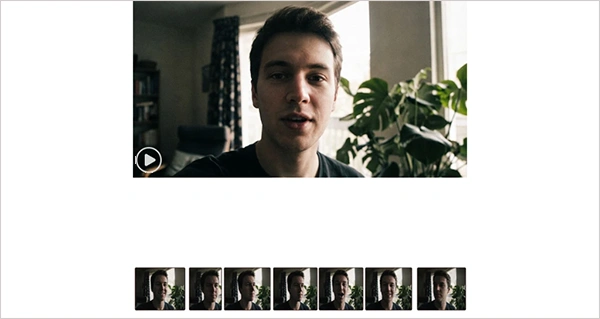
Test A – Traditional format converter:
We tried a common online MP4 tool, set the output to 1080p, H.264, and kept the fps the same. Processing was fast, maybe 30 seconds.
Output: 1920×1080, 41.2 MB. You can see it below. When viewed full screen, it was exactly what you’d expect – a larger version of the 720p. The grain was bigger, the text was still soft, just larger. No new detail. File size grew because there were more pixels, but no quality gain.
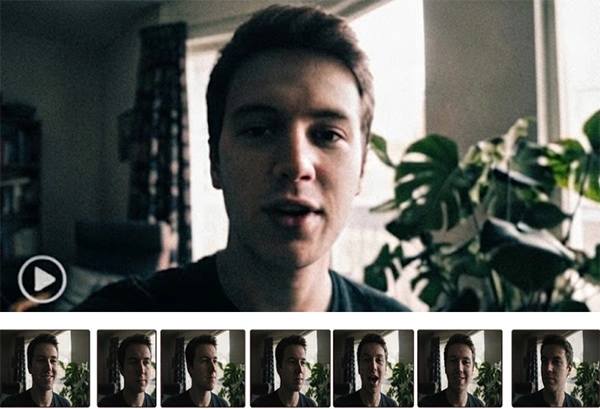
Test B – AI HD converter:
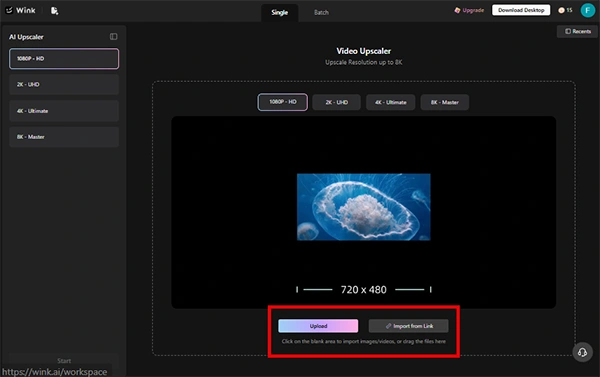
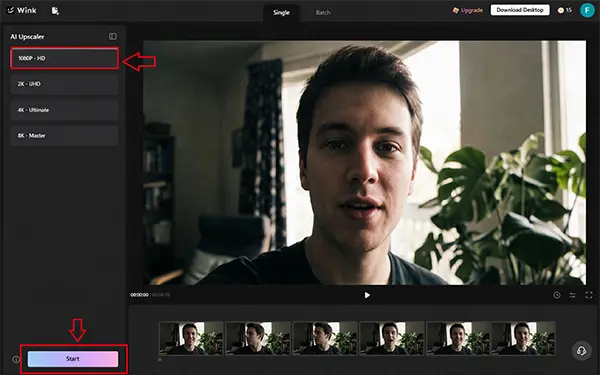
For the AI test, we used the HD video converter from Wink. The process is easy. We opened the tool, imported the same 720p video, selected 1080p from the 1080p/2K/4K menu, and clicked Start. Duration: 2 minutes 18 seconds.
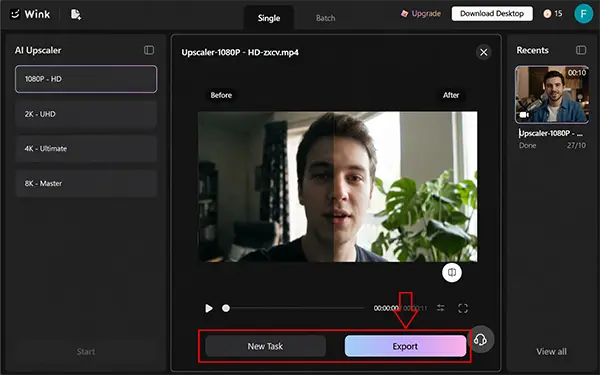
Output: MP4 format, 1920 x 1080 resolution, 52.8MB, with best audio synchronization. You can check the results below.
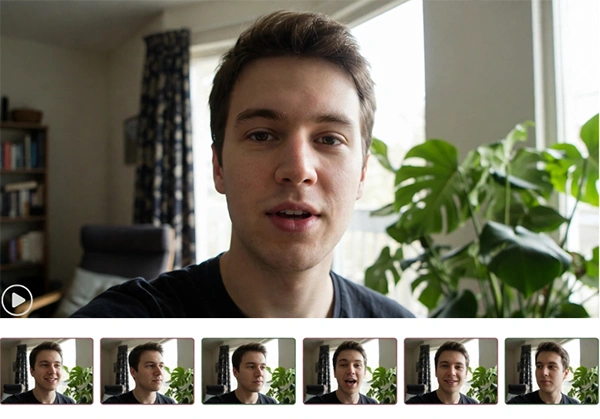
Visual Difference
In Test A, the grain in the dark corner near the curtain got worse – larger and more obvious because the frame got bigger. Skin looked softer than before, not sharper. The small text on the product box behind? Still a blurry smudge when you stop. Same as the original, just larger.
In Test B, that same grain was cleaned up, but not in that fake plastic way. Skin still had texture, and pores were still there. The text on that box – you could lastly read it when paused. Edges around hair and the plant leaves were tight, not mushy, and there was no white halo from over-sharpening.
In short, Test A made the file bigger. Test B made it better.
Wink’s official notes say the equipment combines scene-adaptive enhancement, resolution choices, cloud batch processing, and reusable exports like still frames and Live Photos. That matches what we saw – it didn’t just resize; it adapted to light changes and preserved fine detail while converting.
Which One Should You Use?
It depends on your source and your aim.
Use a traditional format converter when:
- Your source is already sharp and high quality
- You just want to change MOV to MP4, or MKV to MP4 for compatibility
- You want to control bitrate or file size precisely for upload limits
- You are converting a crisp 4K file down to 1080p to save space
You should be using an AI HD video converter if:
- Source footage is 360p, 480p, 540p, or soft 720p
- Video has been compressed with WhatsApp, Zoom, or social media downloading
- People, text, or products become blurry or pixelated
- You need a clean 1080p version to upload to YouTube, Reels, TikTok, or send to your clients
- You have more than one old video clip that requires uniform quality
In fact, most creators tend to use both. First, they recover their old footage utilizing an AI HD video converter and upgrade it to 1080p, and if required, a specific codec or lower bitrate for certain platforms, then convert that 1080p video using a traditional converter.
A Simple Workflow for Rescuing Old Footage
If you have a folder of mixed-quality clips, this order works best:
Select the original file, not a copy that was forwarded or downloaded from social media. The less prior compression, the better the AI rebuilds. Open Wink – https://wink.ai/ – and go to the HD video converter. Upload the file – it supports MP4, MOV, MKV.
Next, choose a resolution. For most web and social use, 1080p is the sweet spot. 2K and 4K are there if you plan to crop heavily or display on large screens.
Once it’s done, download the HD video. Need a thumbnail? Take a still frame from the converted file rather than screenshotting the old one — the detail is much cleaner.
In most cases, the AI file is ready to upload as is. Only need a second pass with a normal converter if the file size has to be super small.
Final Take
The easiest way to understand the difference is to check it.
Take one of your worst videos – that 480p clip from 2018, a screen recording, a file someone sent on WhatsApp. Convert it to 1080p with a free traditional tool. Then convert the same original with Wink’s AI HD converter to 1080p.
Now stop both on the same frame. Look at the edges.
The traditionally converted file will look softer. Text stays blurry, grain gets bigger, skin loses detail. It’s just a bigger version of the same problem.
The AI video version is a little different. Edges look tight. Noise in the shadows is gone, but texture is still there. Small text on a product, a slide, or a sign becomes readable. That’s the difference between resizing and rebuilding.
FAQs
Ans: The best AI to enhance video quality is Topaz Labs.
Ans: Seedance 2.5 is the highest-quality video generator model.
Ans: The free AIs are InVideo AI, Runway, and RunningHub AI.